
Creating professional-looking videos no longer requires expensive editing software or years of technical experience. Today, beginners, social media creators and small businesses can produce impressive videos using accessible editing applications. One name that continues to attract attention is CapCut.
CapCut has become a popular choice for people who create YouTube Shorts, Instagram Reels, TikTok videos, product promotions and educational content. Its combination of traditional editing tools, ready-made templates and artificial intelligence features makes video production easier for different types of users.
Whether you are starting your first YouTube channel or managing social media accounts for a business, understanding what CapCut offers can help you create more engaging content.
In this guide, we explore nine useful features, explain the differences between free and paid plans, and show how beginners can get started.
https://www.capcut.com/?utm_source=chatgpt.com
What Is CapCut?
CapCut is a video editing application developed by ByteDance. It is available across mobile devices, desktop computers and web browsers, although the available features can differ between platforms and regions.
The application allows users to import video clips, trim footage, arrange scenes, add music, create subtitles, apply visual effects and export completed videos.
One reason for its popularity is its relatively approachable interface. Beginners can use templates and basic editing tools, while more experienced creators can work with multiple video and audio tracks.
The platform has also expanded beyond traditional editing. Its newer AI-powered tools support tasks such as automatic editing, image generation, video generation and voice-related workflows.
https://www.capcut.com/help?utm_source=chatgpt.com
9 Powerful CapCut Features Every Creator Should Know

1. Easy Video Editing for Beginners
Getting started with video editing can feel complicated, especially when professional software presents too many controls at once.
CapCut makes basic editing more approachable through tools such as trimming, splitting, merging and rearranging clips.
Users can remove unwanted footage, shorten long recordings and combine multiple scenes into one video.
For example, someone recording a product review can remove pauses, combine different camera angles and arrange the best moments into a short promotional video.
These simple tools are useful for beginners who want to learn editing without immediately investing in complicated software.
https://www.capcut.com/features?utm_source=chatgpt.com
2. Ready-Made Templates for Social Media
Templates are another reason many creators choose this application.
Instead of building every video from scratch, users can start with an existing design and replace its original footage with their own pictures or clips.
Templates can help create:
- Instagram Reels
- TikTok videos
- YouTube Shorts
- Birthday and celebration videos
- Product promotions
- Travel videos
- Photo slideshows
However, some templates and premium effects may require a paid subscription. Availability can also vary by country and account.
3. Automatic Captions and Subtitles
Captions are important because many people watch social media videos without turning on their sound.
Automatic caption tools can convert spoken words into on-screen text, reducing the amount of manual typing required.
Creators can usually review the generated subtitles, correct mistakes and adjust their appearance.
This feature is particularly useful for interviews, educational videos, news updates and tutorials.
It is important to check the final subtitles carefully because background noise, accents and unclear pronunciation can affect transcription accuracy.
4. AI-Powered Video Editing
Artificial intelligence is becoming an increasingly important part of modern video production.
CapCut has introduced AI-assisted editing features that help creators complete certain tasks more efficiently.
One notable development is EditPilot, which brings prompt-based editing capabilities to the desktop application. Creators can describe certain editing changes using natural language and refine the results.
AI-assisted tools can help with tasks such as:
- Organising and editing footage
- Generating captions
- Improving audio
- Creating visual assets
- Making selected editing adjustments
- Developing video ideas
Not every AI feature is available to every user. Some tools may require credits, a subscription or access through a particular platform.
https://www.capcut.com/tools/online-video-editor?utm_source=chatgpt.com
5. Music, Sound Effects and Voiceovers
Good audio can make a major difference to the quality of a video.
The application provides options for adding background music, sound effects and voiceovers.
For example, a travel creator can add suitable background music to scenic footage, while an educational creator can record narration to explain important information.
Users can also adjust audio levels to prevent background music from overpowering spoken content.
Before publishing, creators should check the licensing and commercial-use conditions of any music or audio assets they select.
6. Background Removal and Visual Effects
Background removal can help creators produce cleaner and more professional-looking videos.
This feature is useful when recording product demonstrations, creating promotional material or placing a person in a different visual environment.
Additional effects, filters and transitions can improve the overall appearance of a video.
However, using too many effects can make content look distracting. A simple, consistent editing style often works better than adding every available visual effect.
7. Video Editing on Mobile, Desktop and Web
Different creators prefer different working environments.
The mobile application is convenient for quick edits and social media content. Desktop editing provides a larger screen and more comfortable control over longer timelines. The browser-based editor offers another way to work without relying entirely on a mobile device.
The best option depends on the type of content being produced.
| Platform | Best for |
|---|---|
| Mobile | Reels, Shorts and quick edits |
| Desktop | Longer videos and detailed editing |
| Web | Browser-based editing and convenient access |
Some tools, export options and AI features may differ depending on the platform and region.
https://www.capcut.com/tools/desktop-video-editor?utm_source=chatgpt.com
8. Multiple Video Formats and Export Options
Different social platforms require different video dimensions.
For example:
- YouTube Shorts: 9:16 vertical
- Instagram Reels: 9:16 vertical
- TikTok: 9:16 vertical
- Standard YouTube videos: 16:9 horizontal
Creators can adjust their project dimensions to match their intended publishing platform.
Export settings also matter. Users should check resolution, frame rate and video quality before saving the final project.
A video designed for mobile viewing should have readable text, clear visuals and appropriately balanced audio.
9. AI Image and Video Generation Tools
Another interesting development is the expansion of AI-powered creative tools.
CapCut’s official product pages now showcase image-generation and video-generation workflows alongside conventional editing.
Its November 2026 release information also highlights the upcoming Seedream 5.0 Pro integration and related AI design developments.
These tools can help creators explore visual ideas, prepare promotional material and experiment with new content formats.
AI-generated results should still be reviewed before publishing. Creators should check visual accuracy, text quality, copyright considerations and any applicable AI disclosure requirements.
Is CapCut Free or Paid?
One of the most common questions among beginners is whether the application can be used without paying.
The answer is yes. A free plan is available, but some advanced tools and premium resources require a subscription.
The platform currently lists several subscription options, including Free, Pro, Ultra and Teams.
Free Plan
The free option provides basic editing tools and access to selected templates.
It can be suitable for beginners who want to learn video editing, create simple social media videos and understand the platform before spending money.
Pro Plan
The Pro subscription offers additional premium resources and AI capabilities.
Depending on the account and region, its benefits can include premium templates, advanced AI features and cloud storage.
Ultra and Teams
Ultra is designed for users who need additional AI-generation capacity and premium creative features.
Teams provides collaborative features for users working together on creative projects.
Important: Subscription prices, taxes, promotional offers and feature availability can change by country and billing period. Always check the official pricing page while signed in before purchasing.
CapCut Free vs Pro: Which One Should You Choose?
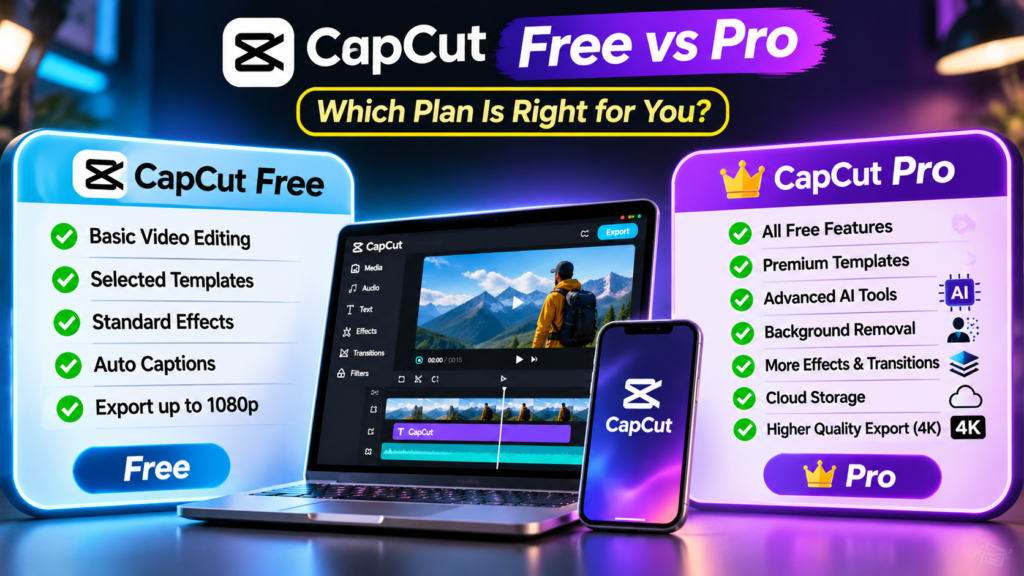
| Feature | Free | Pro |
|---|---|---|
| Basic editing | Yes | Yes |
| Basic templates | Selected | Expanded premium library |
| Standard editing tools | Yes | Yes |
| Premium effects | Limited | More options |
| Advanced AI features | Limited | Expanded access |
| Cloud storage | Plan-dependent | Expanded storage |
For beginners, starting with the free plan is generally a sensible decision.
There is no need to purchase a subscription before learning the basic editing process. Consider upgrading only when a particular premium feature becomes important to your workflow.
How to Start Using CapCut: A Beginner’s Guide
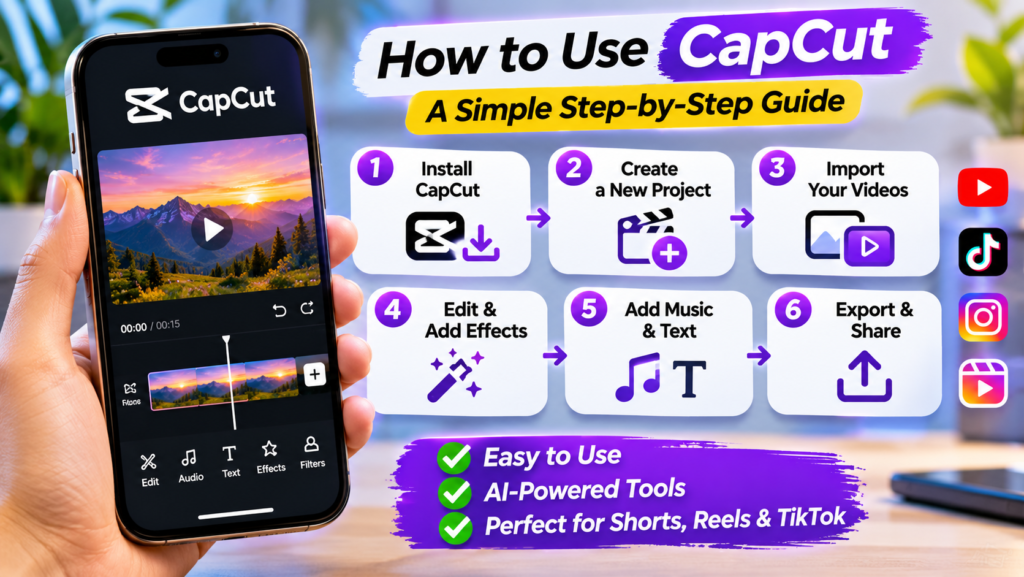
If you have never edited a video before, follow these simple steps.
Step 1: Open the application
Visit the official website or install the application from a trusted app store.
Step 2: Create a new project
Open the editor and select the option to create a new project.
Step 3: Import your footage
Choose the pictures and video clips you want to use.
Step 4: Arrange your clips
Place your footage in the correct order. Remove unnecessary scenes and shorten clips where needed.
Step 5: Add music and text
Include suitable background music, titles and subtitles. Make sure the text is easy to read on a mobile screen.
Step 6: Add transitions and effects
Use simple transitions to connect scenes. Avoid unnecessary effects that distract viewers.
Step 7: Export your video
Select the appropriate dimensions and quality for your publishing platform. Watch the exported video once before uploading it.
With practice, these steps can help beginners develop a consistent editing workflow.
Is CapCut Good for YouTube Shorts and TikTok?
For creators producing short-form videos, this application offers a convenient collection of editing tools.
You can combine multiple clips, add captions, adjust music, include transitions and prepare vertical videos for different social platforms.
For YouTube Shorts, a 9:16 format with a resolution of 1080 × 1920 pixels is a useful production target.
TikTok and Instagram Reels creators can also use similar vertical formats.
The most important thing is not the number of effects used. A strong opening, clear message, good audio and engaging visuals are often more important.
Advantages and Disadvantages
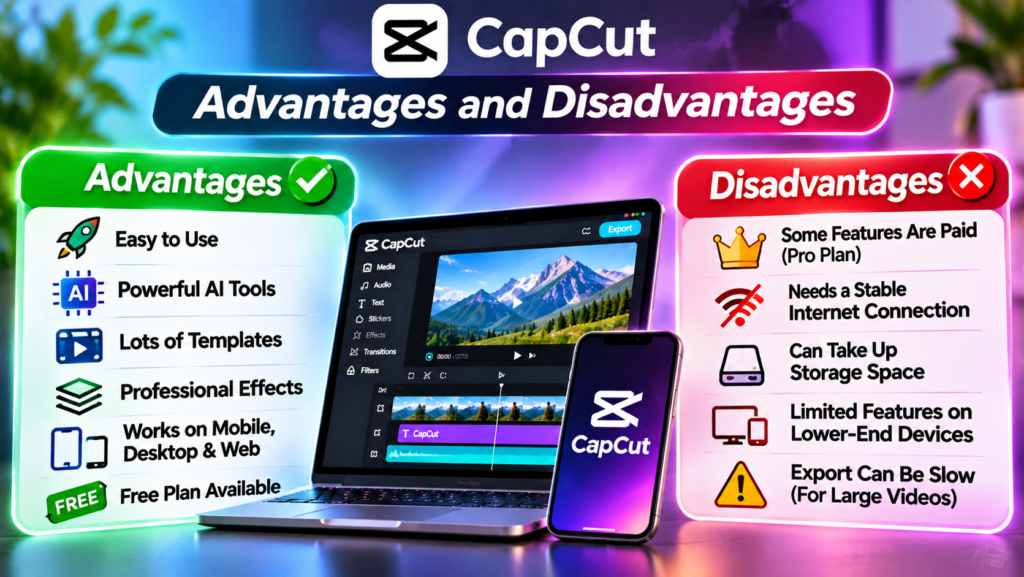
Advantages
- Beginner-friendly editing interface
- Mobile, desktop and browser-based options
- Useful templates and effects
- Automatic captioning tools
- AI-assisted creative features
- Convenient editing for short-form content
- Free plan available
Disadvantages
- Some useful features require payment
- AI tools may have credit limits
- Features can vary by platform and region
- Automatic captions sometimes need correction
- Complex professional projects may require more specialised editing software
- Subscription pricing and benefits can change
Is CapCut Worth Using in 2026?
For beginners, social media creators and small businesses, CapCut can be a useful video editing solution.
Its combination of basic editing tools, templates and AI-assisted features makes it possible to produce different types of content without immediately purchasing expensive software.
Professional editors may still prefer specialised applications for advanced colour grading, complex sound design and large production projects.
The best approach is to start with the free version, learn the editing process and explore additional features as your needs grow.
Frequently Asked Questions (FAQs)
1. What is CapCut used for?
It is used to edit videos, add music, create subtitles, apply visual effects and prepare content for social media platforms.
2. Is CapCut free to use?
Yes. A free plan is available with basic editing tools and selected templates. Some premium features require a paid subscription.
3. Is CapCut available for PC?
Yes. Desktop versions are available for supported Windows and macOS devices. A browser-based editor is also available.
4. Can beginners use CapCut?
Yes. Its basic editing tools and templates make it relatively easy for beginners to learn video editing.
5. Can I make YouTube Shorts with CapCut?
Yes. You can create vertical videos, add subtitles, music and transitions, and export them for YouTube Shorts.
6. What is the difference between Free and Pro?
The free plan offers basic editing features, while Pro provides additional premium templates, AI tools and other subscription benefits.
7. Does CapCut have AI features?
Yes. Its AI-related tools include automatic captions, AI-assisted editing and image or video generation features. Availability depends on the platform, account and region.
Final Verdict
Video creation is becoming an important skill for individuals, businesses and digital creators. Having an accessible editing application can make the process easier and help people communicate their ideas more effectively.
CapCut offers a practical starting point for anyone interested in creating short videos, social media content, tutorials or promotional material.
You do not need to master every feature immediately. Start with basic editing, practise regularly and gradually explore the more advanced tools.
The quality of your content will ultimately depend on your creativity, storytelling and ability to connect with your audience.
For more updates, tutorials and useful technology guides, explore the latest articles in our NuvWire Technology section.