
Is your smartphone battery draining fast, even when you are not using your phone very much? You are not alone. Many smartphone users experience battery problems because of screen brightness, background apps, location services, weak network signals, and other power-hungry settings.
The good news is that you may not need a new phone or battery immediately. A few adjustments can help reduce unnecessary power consumption and make your phone last longer throughout the day.
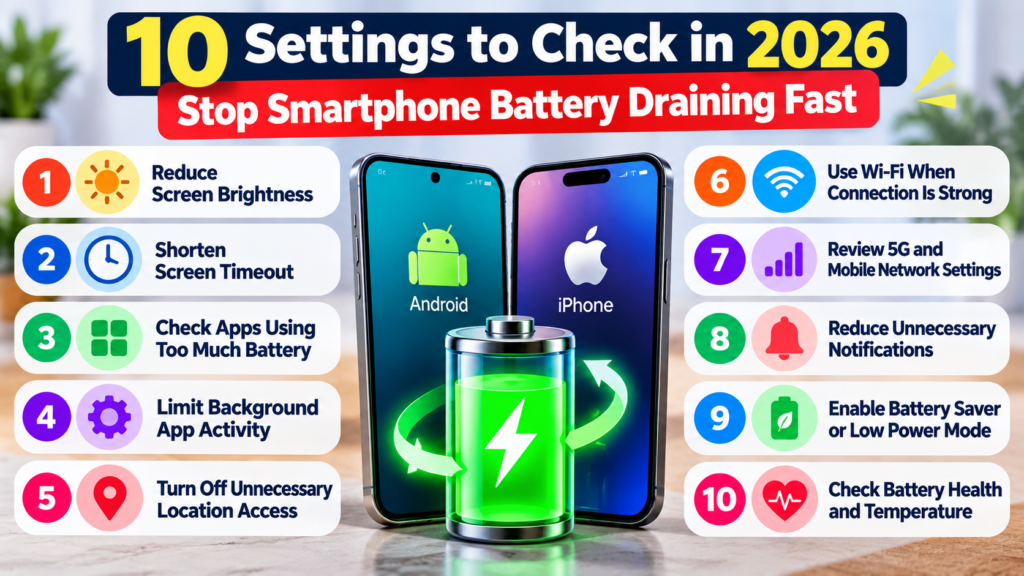
In this guide, we explain 10 smartphone settings to check in 2026, with practical tips for both Android phones and iPhones.
If your smartphone battery draining fast is becoming a daily problem, checking your phone’s battery usage is a good first step.
Why Is Your Smartphone Battery Draining So Fast?
Battery drain can happen for several reasons. Your display may be using too much power, certain apps may be running in the background, or your phone may be constantly searching for a mobile signal. An older battery can also hold less charge than it did when the phone was new.
Before changing everything, open your phone’s battery settings and identify which apps or system features are consuming the most energy. This helps you focus on the actual problem instead of disabling useful features unnecessarily.
1. Reduce Screen Brightness
Your display can be one of the biggest sources of battery consumption, especially when brightness stays high for long periods.
What to do:
- Reduce brightness to a comfortable level.
- Enable Adaptive Brightness on Android or Auto-Brightness on iPhone.
- Avoid keeping your screen unnecessarily bright indoors.
These adjustments can reduce power consumption without making your phone difficult to use.
2. Shorten Screen Timeout or Auto-Lock
Your phone continues using power while the display remains on. A long screen timeout means the display may stay active even when you put your phone down.
What to do:
- On Android, look for Screen timeout in Display settings.
- On iPhone, open Settings, select Display & Brightness, and check Auto-Lock.
- Choose a shorter interval that suits your routine.
This small change can prevent your screen from staying on unnecessarily.
3. Check Apps Using Too Much Battery
Some apps consume significant power because they use location, refresh content, stream media, or perform other tasks in the background.
What to do:
- On Android, open Settings and look for Battery or Battery usage.
- On iPhone, open Settings and select Battery.
- Review the apps using the most power.
- Update, restrict, or uninstall apps that show unusual activity and are not essential.
Remember that high usage does not always mean an app is faulty. A video app may use substantial battery simply because you spend a lot of time watching videos.
https://support.apple.com/en-ie/120745
4. Limit Background App Activity
Some applications continue updating content when you are not actively using them. This can increase battery consumption and mobile data usage.
On Android, check the battery settings for apps that use excessive background power. On iPhone, review Background App Refresh under Settings and General.
Restrict background activity for apps that do not need constant updates. However, be careful with messaging, email, and other important apps because restrictions may delay notifications or updates.
5. Turn Off Unnecessary Location Access
Navigation, delivery, weather, and social media apps may use your location. Frequent location access can contribute to battery drain.
What to do:
- Review location permissions in your phone’s Privacy or Location settings.
- Allow location access only when an app genuinely needs it.
- Choose an option such as “While Using the App” where appropriate.
You do not have to turn off location services completely. Keep them available for navigation, safety, and other features you depend on.
6. Use Wi-Fi When the Connection Is Strong
Your phone may consume additional power when it struggles to maintain a mobile connection. Weak signals can make this problem more noticeable.
When a reliable Wi-Fi network is available, consider using it for browsing and downloads. If you are in an area with no mobile coverage for an extended period and do not need connectivity, Airplane Mode may help reduce power consumption.
Do not disable mobile connectivity if you need to remain reachable for calls or emergencies.
7. Review 5G and Mobile Network Settings
Modern mobile networks provide fast internet access, but power consumption varies with signal strength, network conditions, and how you use your device.
If your phone supports an automatic 5G mode, consider using it. On supported iPhones, 5G Auto can switch between 5G and LTE depending on conditions. Android options vary by manufacturer and model.
You do not necessarily need to disable 5G. First check whether poor coverage or a specific network setting is contributing to your battery problem.
8. Reduce Unnecessary Notifications and Syncing
Frequent notifications can wake your screen, while some apps regularly sync data in the background.
What to do:
- Disable notifications you do not need.
- Review automatic syncing for rarely used apps.
- Keep essential alerts enabled for banking, security, work, and messaging.
The goal is to reduce unnecessary activity without missing important information.
9. Enable Battery Saver or Low Power Mode
Battery-saving modes can reduce background activity and limit certain features to extend the time remaining before you need to recharge.
On Android, look for Battery Saver or Power Saving in Settings. On iPhone, open Settings, select Battery, and enable Low Power Mode. Menu names can differ by device and software version.
Use these modes when your battery is running low or when you need your phone to last longer during travel or a busy day. Some apps, animations, background updates, or other features may work differently while these modes are enabled.
10. Check Battery Health and Temperature
If your phone continues losing charge quickly after you adjust its settings, the battery itself may have deteriorated. Rechargeable batteries gradually lose capacity as they age and go through charging cycles.
On supported iPhones, check Battery Health in Settings. Android battery-health information varies by manufacturer, so consult your device’s official support guidance.
Also avoid exposing your phone to excessive heat. Hot environments, demanding apps, and heavy use while charging can increase device temperature. If the phone becomes unusually hot or its battery drains abnormally, investigate the cause rather than relying only on power-saving settings.
Why Is Your Smartphone Battery Draining Fast?
If your smartphone battery draining fast problem continues, check your battery usage settings to identify apps and features consuming excessive power.
When your smartphone battery draining fast issue continues, review background apps and reduce unnecessary power consumption.
Fix Smartphone Battery Draining Fast Issues
To troubleshoot a smartphone battery draining fast issue, reduce unnecessary background activity, review location permissions, and adjust screen brightness.
Prevent Your Smartphone Battery from Draining Fast
Checking battery health and using power-saving settings can help when your smartphone battery draining fast affects everyday use.
Extra Tips to Make Your Phone Battery Last Longer
Along with the 10 settings above, consider these practical habits:
- Keep your phone’s operating system and apps updated.
- Restart your phone occasionally if it is behaving unusually.
- Avoid installing unknown battery-optimization apps that request unnecessary permissions.
- Use a compatible, reliable charger and cable.
- If battery drain begins after a software update, allow time for background tasks to finish and check usage again.
- Seek professional advice if the battery is swollen, the phone overheats repeatedly, or battery performance remains poor.
- https://support.google.com/android/answer/7664692
When Should You Replace Your Phone Battery?
Settings cannot restore capacity that an old battery has permanently lost. If your phone shuts down unexpectedly, shows a battery service warning, or continues draining rapidly after troubleshooting, the battery may need professional inspection or replacement.
Use your phone manufacturer’s support service or an authorized repair provider where available. Never attempt to puncture, bend, or open a damaged lithium-ion battery.
These simple checks can help you understand why your smartphone battery draining fast and identify settings that may need attention.
https://support.google.com/pixelphone/answer/6090599
Final Thoughts
https://nuvwire.com/category/technology
If your smartphone battery is draining fast in 2026, start by checking screen brightness, screen timeout, battery usage by app, background activity, and location permissions. Then review network settings, notifications, power-saving modes, and battery health.
You do not need to disable every feature to save power. Make changes gradually and observe whether battery life improves. If the problem persists, an aging battery or a device-specific issue may require professional attention.
Small adjustments can make everyday smartphone use more efficient and help you understand what is consuming your battery.